---
title: Troubleshooting
description: Fix common issues and optimize Jan's performance with this comprehensive guide.
keywords:
[
Jan,
troubleshooting,
error fixes,
performance issues,
GPU problems,
installation issues,
common errors,
local AI,
technical support,
]
---
import { Tabs } from 'nextra/components'
import { Aside, Steps } from '@astrojs/starlight/components'
# Troubleshooting
## Getting Help: Error Logs
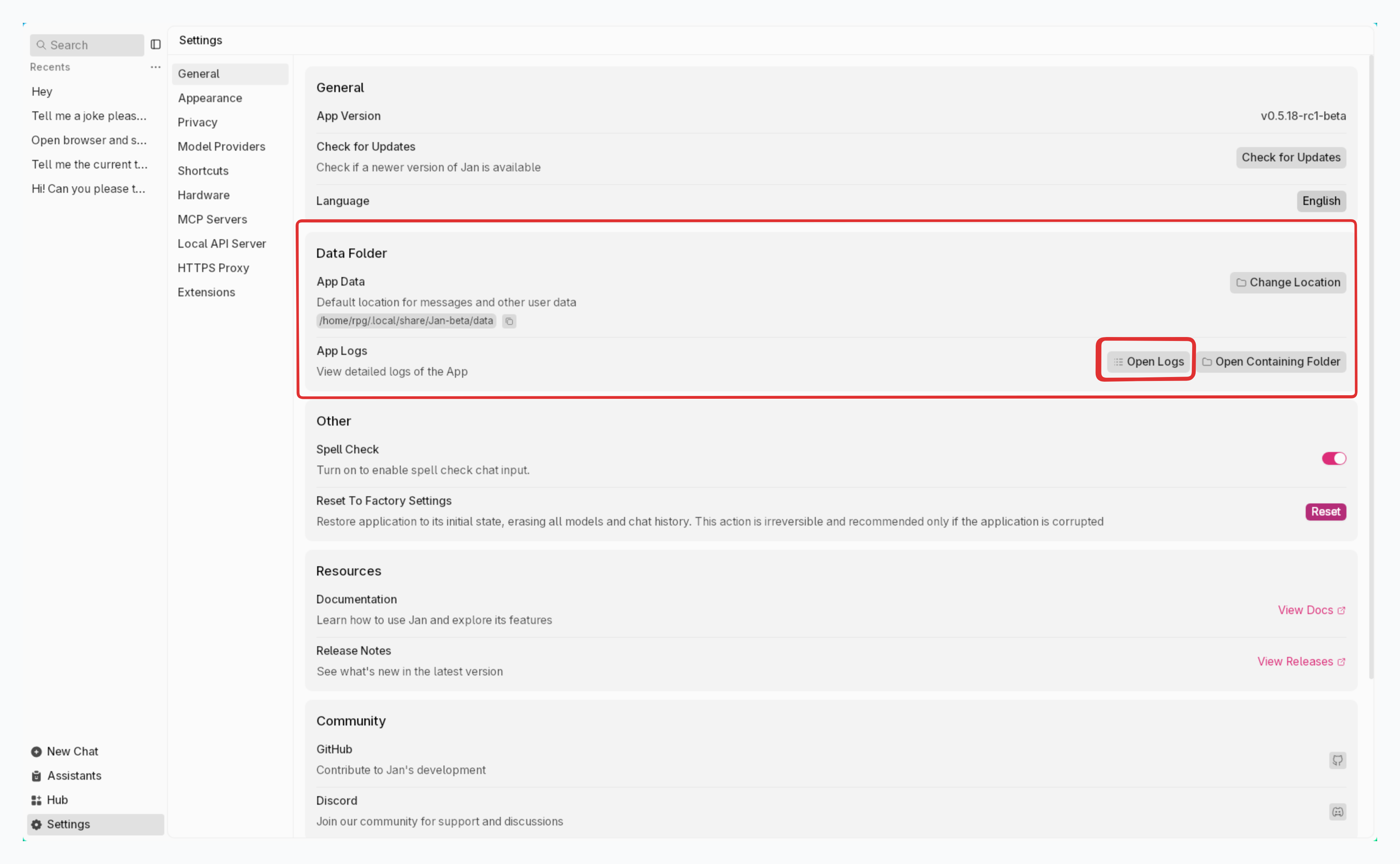
When Jan isn't working properly, error logs help identify the problem. Here's how to get them:
### Quick Access to Logs
**In Jan Interface:**
1. Look for **System Monitor** in the footer
2. Click **App Log**
**Via Terminal:**
```bash
# macOS/Linux
tail -n 50 ~/Library/Application\ Support/Jan/data/logs/app.log
# Windows
type %APPDATA%\Jan\data\logs\app.log
```
## Common Issues & Solutions
### Jan Won't Start (Broken Installation)
If Jan gets stuck after installation or won't start properly:
**Clean Reinstall Steps:**
1. **Uninstall Jan** from Applications folder
2. **Delete all Jan data:**
```bash
rm -rf ~/Library/Application\ Support/Jan
```
3. **Kill any background processes** (for versions before 0.4.2):
```bash
ps aux | grep nitro
# Find process IDs and kill them:
kill -9
```
4. **Download fresh copy** from [jan.ai](/download)
**Clean Reinstall Steps:**
1. **Uninstall Jan** via Control Panel
2. **Delete application data:**
```cmd
cd C:\Users\%USERNAME%\AppData\Roaming
rmdir /S Jan
```
3. **Kill background processes** (for versions before 0.4.2):
```cmd
# Find nitro processes
tasklist | findstr "nitro"
# Kill them by PID
taskkill /F /PID
```
4. **Download fresh copy** from [jan.ai](/download)
**Clean Reinstall Steps:**
1. **Uninstall Jan:**
```bash
# For Debian/Ubuntu
sudo apt-get remove jan
# For AppImage - just delete the file
```
2. **Delete application data:**
```bash
# Default location
rm -rf ~/.config/Jan
# Or custom location
rm -rf $XDG_CONFIG_HOME/Jan
```
3. **Kill background processes** (for versions before 0.4.2):
```bash
ps aux | grep nitro
kill -9
```
4. **Download fresh copy** from [jan.ai](/download)
### NVIDIA GPU Not Working
If Jan isn't using your NVIDIA graphics card for acceleration:
### Step 1: Check Your Hardware Setup
**Verify GPU Detection:**
*Windows:* Right-click desktop → NVIDIA Control Panel, or check Device Manager → Display Adapters
*Linux:* Run `lspci | grep -i nvidia`
**Install Required Software:**
**NVIDIA Driver (470.63.01 or newer):**
1. Download from [nvidia.com/drivers](https://www.nvidia.com/drivers/)
2. Test: Run `nvidia-smi` in terminal
**CUDA Toolkit (11.7 or newer):**
1. Download from [CUDA Downloads](https://developer.nvidia.com/cuda-downloads)
2. Test: Run `nvcc --version`
**Linux Additional Requirements:**
```bash
# Install required packages
sudo apt update && sudo apt install gcc-11 g++-11 cpp-11
# Set CUDA environment
export LD_LIBRARY_PATH=$LD_LIBRARY_PATH:/usr/local/cuda/lib64
```
### Step 2: Enable GPU Acceleration in Jan
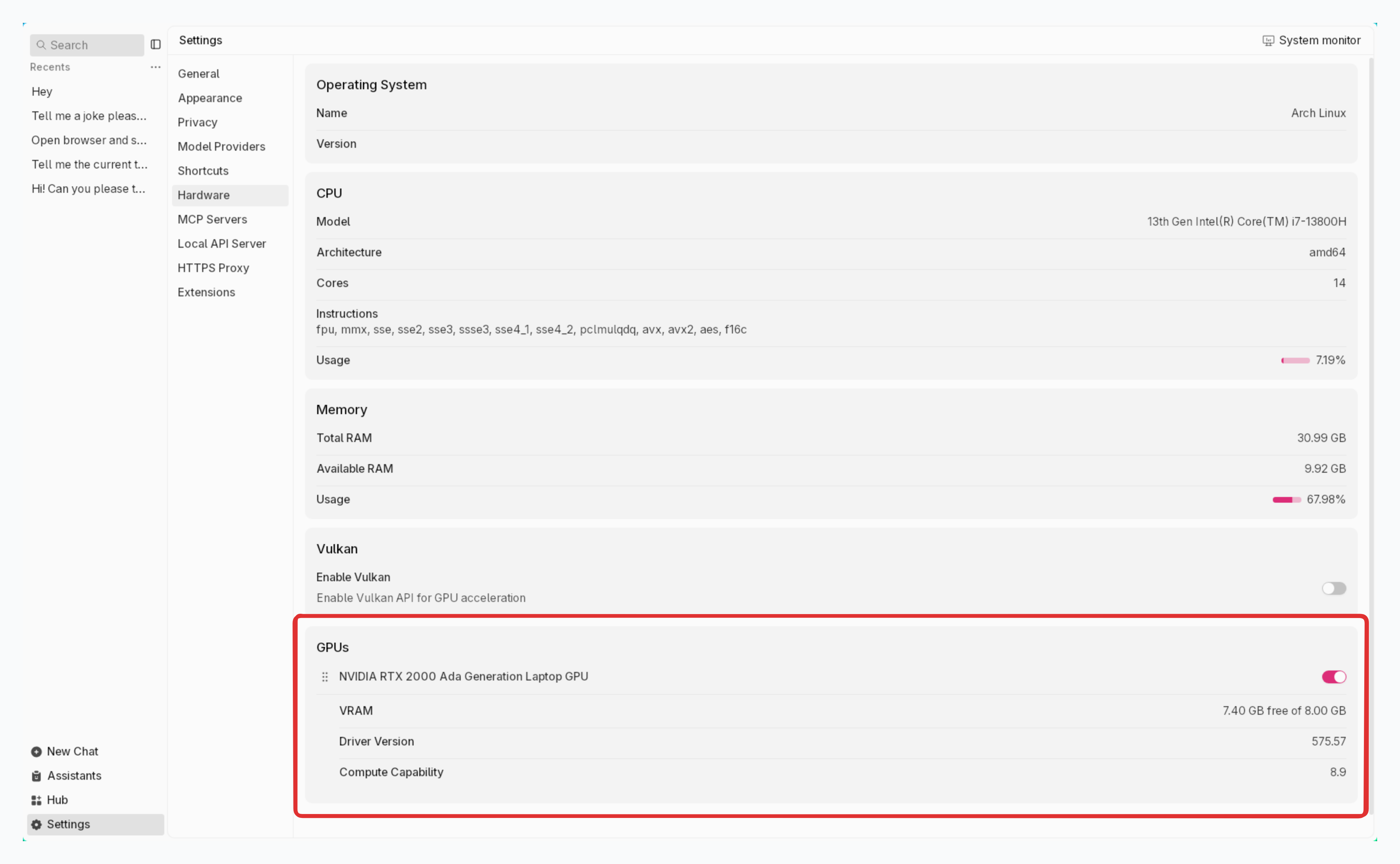
1. Open **Settings** > **Hardware**
2. Turn on **GPU Acceleration**
3. Check **System Monitor** (footer) to verify GPU is detected
### Step 3: Verify Configuration
1. Go to **Settings** > **Advanced Settings** > **Data Folder**
2. Open `settings.json` file
3. Check these settings:
```json
{
"run_mode": "gpu", // Should be "gpu"
"nvidia_driver": {
"exist": true, // Should be true
"version": "531.18"
},
"cuda": {
"exist": true, // Should be true
"version": "12"
},
"gpus": [
{
"id": "0",
"vram": "12282" // Your GPU memory in MB
}
]
}
```
### Step 4: Restart Jan
Close and restart Jan to apply changes.
#### Tested Working Configurations
**Desktop Systems:**
- Windows 11 + RTX 4070Ti + CUDA 12.2 + Driver 531.18
- Ubuntu 22.04 + RTX 4070Ti + CUDA 12.2 + Driver 545
**Virtual Machines:**
- Ubuntu on Proxmox + GTX 1660Ti + CUDA 12.1 + Driver 535
### "Failed to Fetch" or "Something's Amiss" Errors
When models won't respond or show these errors:
**1. Check System Requirements**
- **RAM:** Use models under 80% of available memory
- 8GB system: Use models under 6GB
- 16GB system: Use models under 13GB
- **Hardware:** Verify your system meets [minimum requirements](/docs/troubleshooting#step-1-verify-hardware-and-system-requirements)
**2. Adjust Model Settings**
- Open model settings in the chat sidebar
- Lower the **GPU Layers (ngl)** setting
- Start low and increase gradually
**3. Check Port Conflicts**
If logs show "Bind address failed":
```bash
# Check if ports are in use
# macOS/Linux
netstat -an | grep 1337
# Windows
netstat -ano | find "1337"
```
**Default Jan ports:**
- API Server: `1337`
- Documentation: `3001`
**4. Try Factory Reset**
1. **Settings** > **Advanced Settings**
2. Click **Reset** under "Reset To Factory Settings"
**5. Clean Reinstall**
If problems persist, do a complete clean installation (see "Jan Won't Start" section above).
### Permission Denied Errors
If you see permission errors during installation:
```bash
# Fix npm permissions (macOS/Linux)
sudo chown -R $(whoami) ~/.npm
# Windows - run as administrator
```
### OpenAI API Issues ("Unexpected Token")
For OpenAI connection problems:
**1. Verify API Key**
- Get valid key from [OpenAI Platform](https://platform.openai.com/)
- Ensure sufficient credits and permissions
**2. Check Regional Access**
- Some regions have API restrictions
- Try using a VPN from a supported region
- Test network connectivity to OpenAI endpoints
### Performance Issues
**Models Running Slowly:**
- Enable GPU acceleration (see NVIDIA section)
- Use appropriate model size for your hardware
- Close other memory-intensive applications
- Check Task Manager/Activity Monitor for resource usage
**High Memory Usage:**
- Switch to smaller model variants
- Reduce context length in model settings
- Enable model offloading in engine settings
**Frequent Crashes:**
- Update graphics drivers
- Check system temperature
- Reduce GPU layers if using GPU acceleration
- Verify adequate power supply (desktop systems)
## Need More Help?
If these solutions don't work:
**1. Gather Information:**
- Copy your error logs (see top of this page)
- Note your system specifications
- Describe what you were trying to do when the problem occurred
**2. Get Community Support:**
- Join our [Discord](https://discord.com/invite/FTk2MvZwJH)
- Post in the **#🆘|jan-help** channel
- Include your logs and system info
**3. Check Resources:**
- [System requirements](/docs/troubleshooting#step-1-verify-hardware-and-system-requirements)
- [Model compatibility guides](/docs/manage-models)
- [Hardware setup guides](/docs/desktop/)