 20d43cd60c
* Add docs usage switch mode jan app

* Update notification

---------

Co-authored-by: Hien To <tominhhien97@gmail.com>
4.8 KiB
Requirements for running Jan App in GPU mode on Windows and Linux
-
You must have an NVIDIA driver that supports CUDA 11.4 or higher. Refer here. To check if the NVIDIA driver is installed, open PowerShell or Terminal and enter the following command:
nvidia-smiIf you see a result similar to the following, you have successfully installed the NVIDIA driver:
+-----------------------------------------------------------------------------+ | NVIDIA-SMI 470.57.02 Driver Version: 470.57.02 CUDA Version: 11.4 | |-------------------------------+----------------------+----------------------+ | GPU Name Persistence-M| Bus-Id Disp.A | Volatile Uncorr. ECC | | Fan Temp Perf Pwr:Usage/Cap| Memory-Usage | GPU-Util Compute M. | | | | MIG M. | |===============================+======================+======================| | 0 NVIDIA GeForce ... Off | 00000000:01:00.0 On | N/A | | 0% 51C P8 10W / 170W | 364MiB / 7982MiB | 0% Default | | | | N/A | +-------------------------------+----------------------+----------------------+ -
You must have CUDA 11.4 or higher. To check if CUDA is installed, open PowerShell or Terminal and enter the following command:
nvcc --versionIf you see a result similar to the following, you have successfully installed CUDA:
nvcc: NVIDIA (R) Cuda compiler driver Cuda compilation tools, release 11.4, V11.4.100 Build cuda_11.4.r11.4/compiler.30033411_0 -
Specifically for Linux, you will need to have a CUDA compatible driver, refer here, and you must add the
.solibraries of CUDA and the CUDA compatible driver to theLD_LIBRARY_PATHenvironment variable, refer here.
How to switch mode CPU/GPU Jan app
By default, Jan app will run in CPU mode. When starting Jan app, the program will automatically check if your computer meets the requirements to run in GPU mode. If it does, we will automatically enable GPU mode and pick the GPU has highest VGRAM for you (feature allowing users to select one or more GPU devices for use - currently in planning). You can check whether you are using CPU mode or GPU mode in the settings/advance section of Jan app. (see image below). 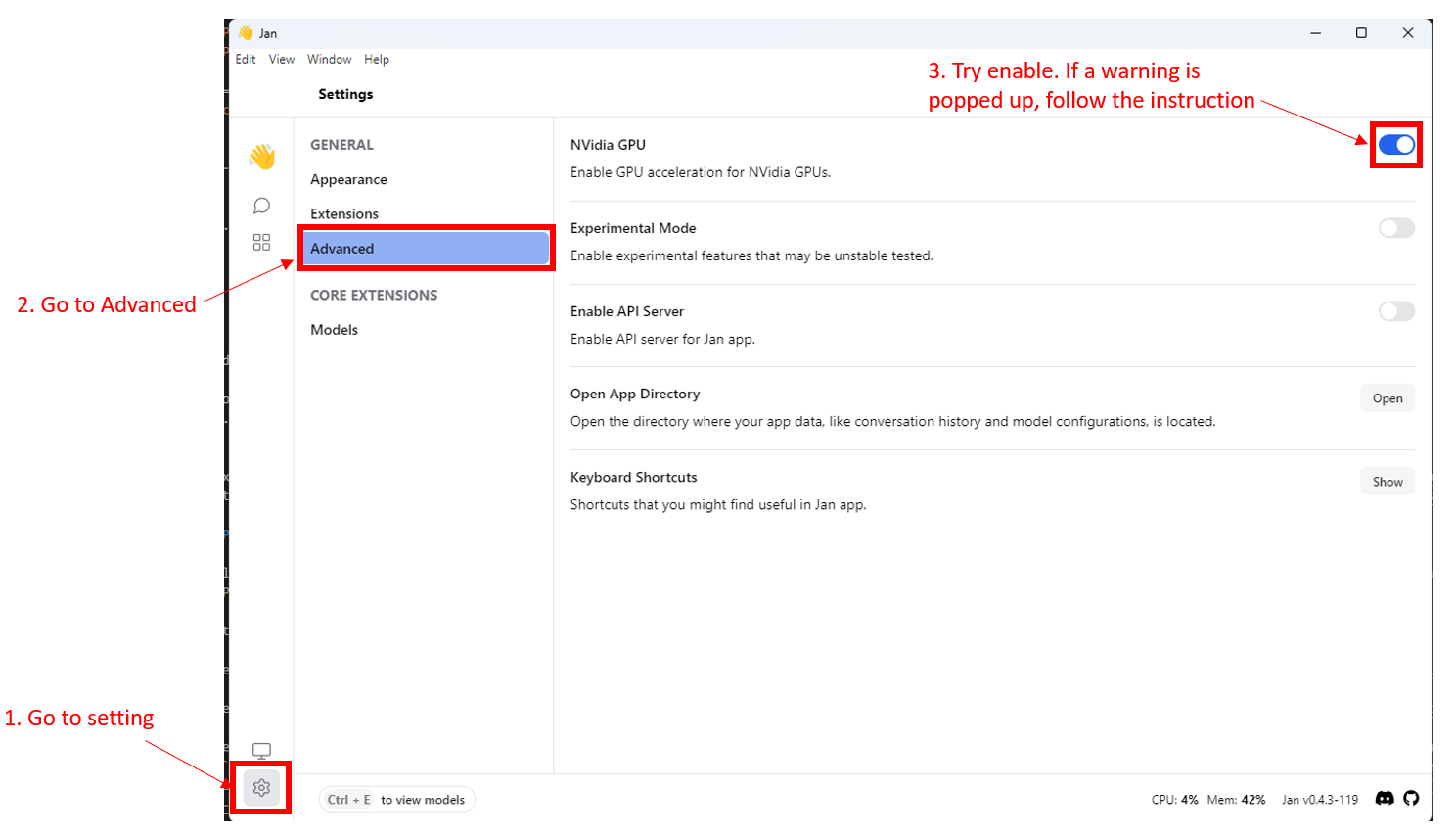
If you have GPU mode but it is not enabled by default, the following possibilities may exist, you can follow the next steps to fix the error:
-
You have not installed the NVIDIA driver, refer to the NVIDIA driver that supports CUDA 11.4 here.
-
You have not installed the CUDA toolkit or your CUDA toolkit is not compatible with the NVIDIA driver, refer to CUDA compatibility here.
-
You have not installed a CUDA compatible driver, refer here, and you must add the
.solibraries of CUDA and the CUDA compatible driver to theLD_LIBRARY_PATHenvironment variable, refer here. For Windows, add the.dlllibraries of CUDA and the CUDA compatible driver to thePATHenvironment variable. Usually, when installing CUDA on Windows, this environment variable is automatically added, but if you do not see it, you can add it manually by referring here.
To check the current GPU-related settings that Jan app has detected, you can go to the Settings/Advanced section as shown in the image below.
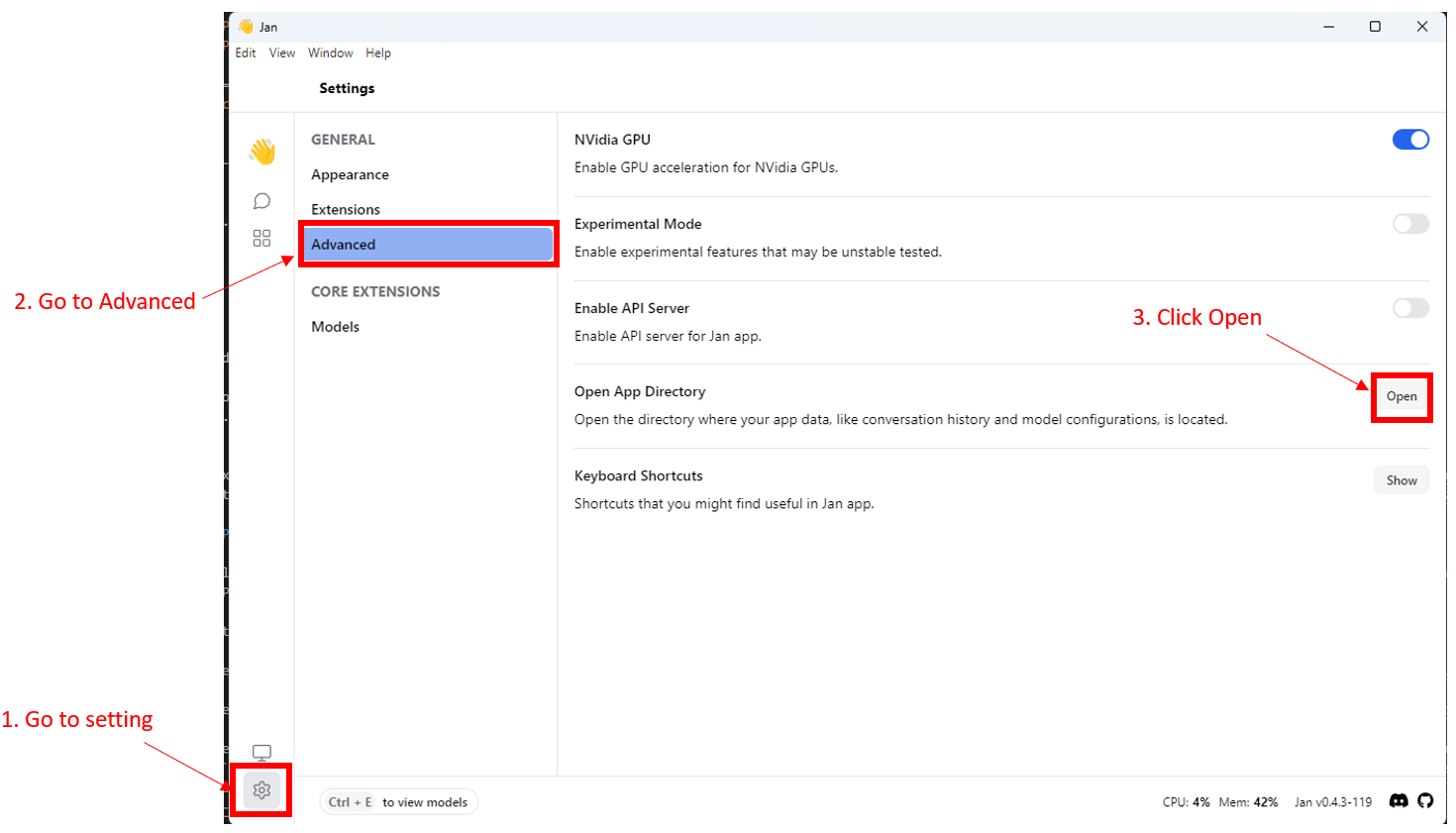
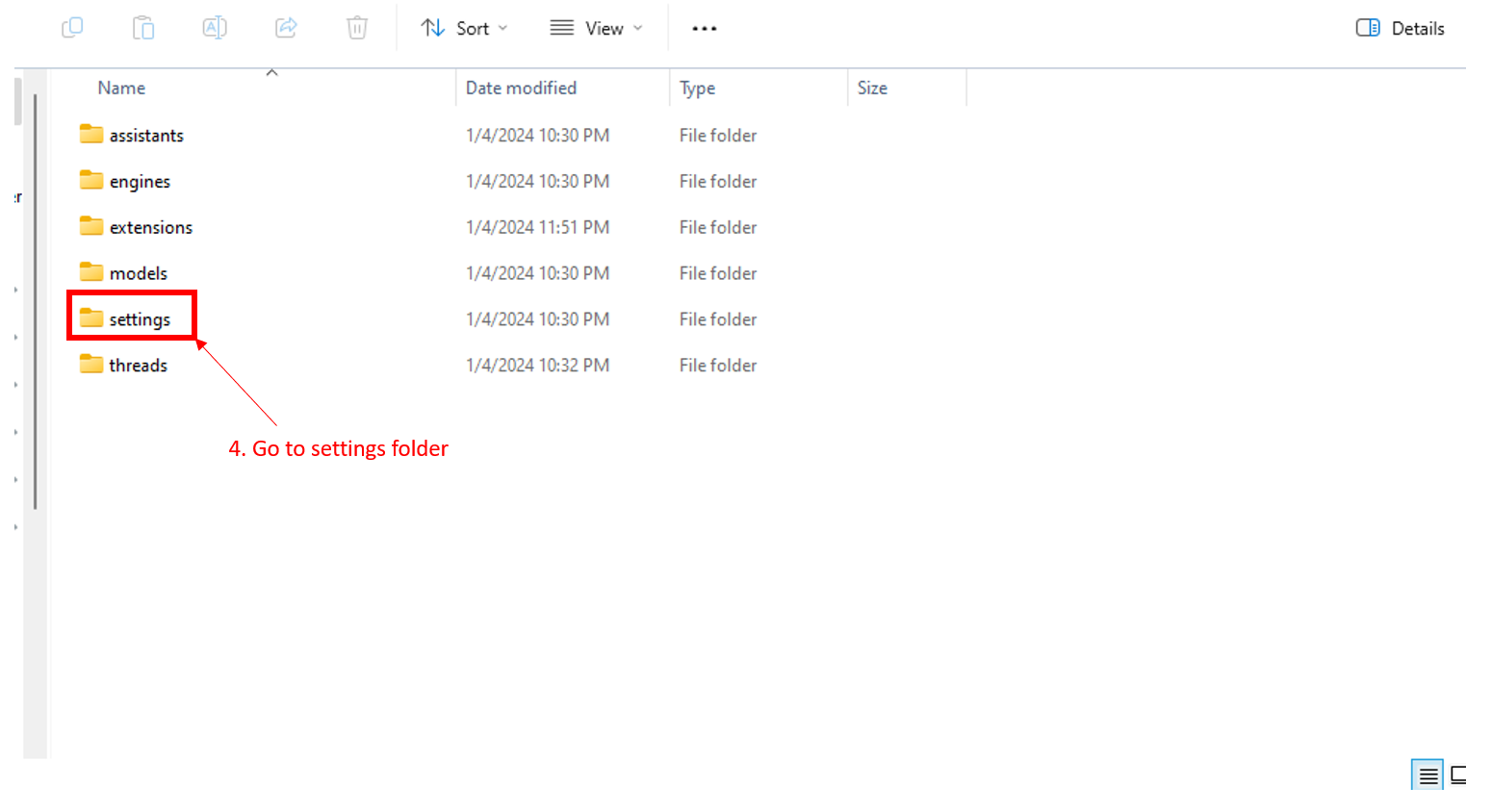
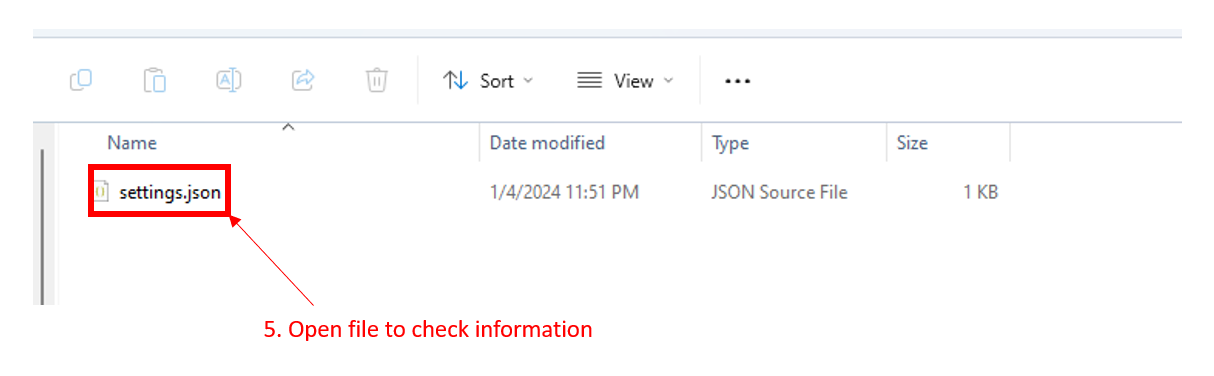
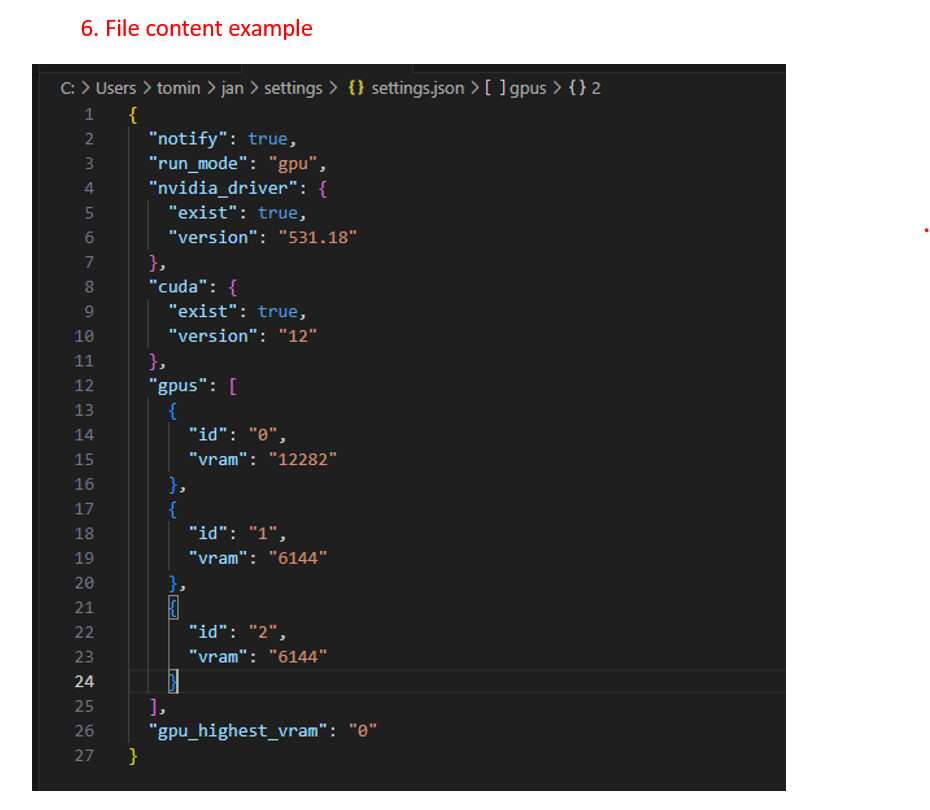
When you have an issue with GPU mode, share the settings.json with us will help us to solve the problem faster.
Tested on
- Windows 11 Pro 64-bit, NVIDIA GeForce RTX 4070ti GPU, CUDA 12.2, NVIDIA driver 531.18
- Ubuntu 22.04 LTS, NVIDIA GeForce RTX 4070ti GPU, CUDA 12.2, NVIDIA driver 545